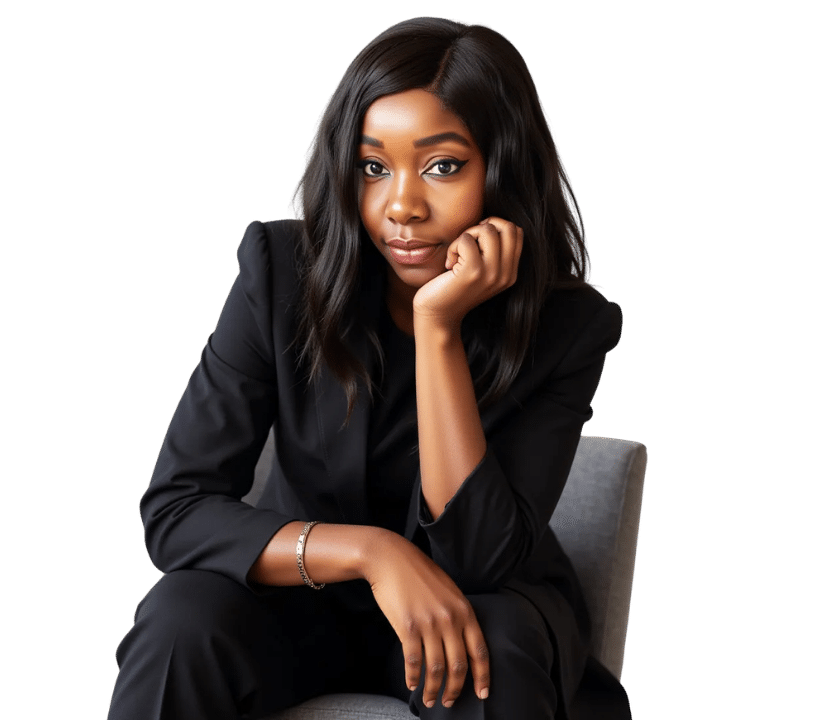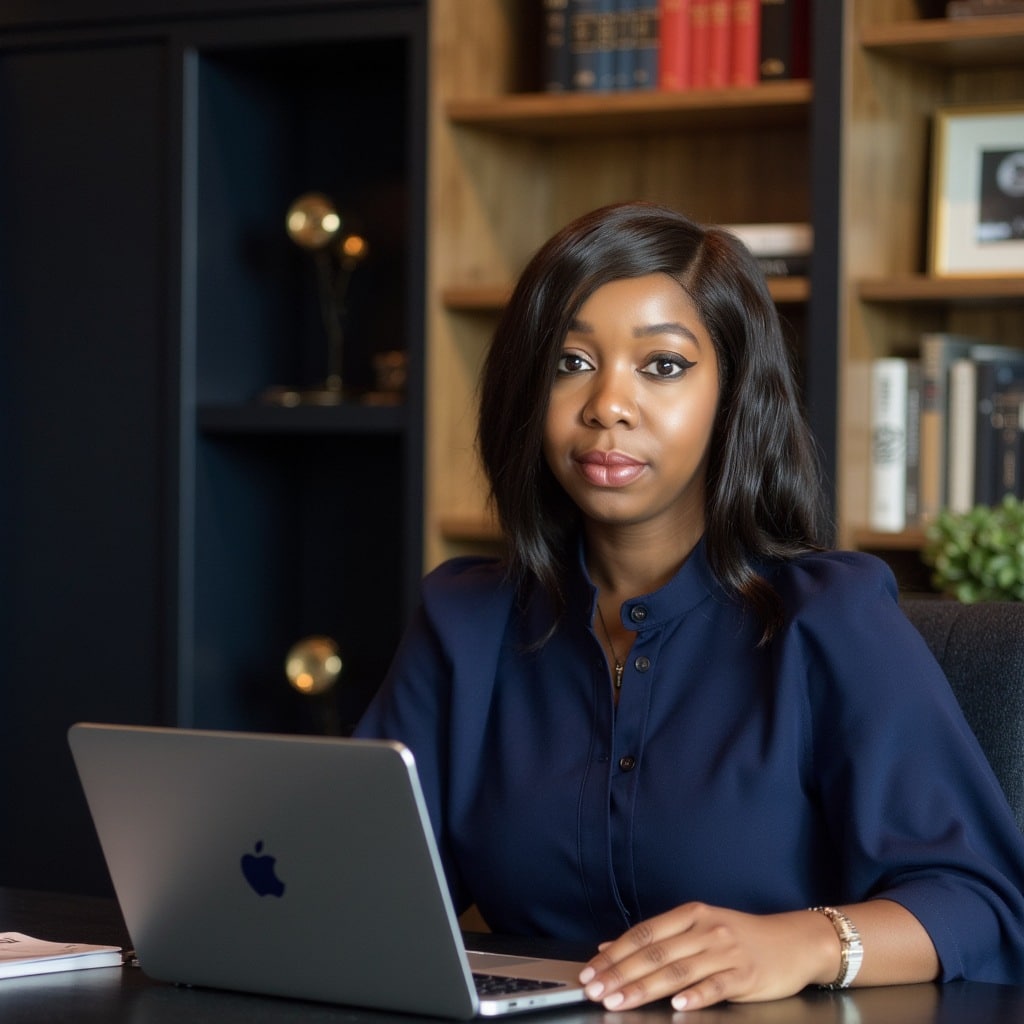
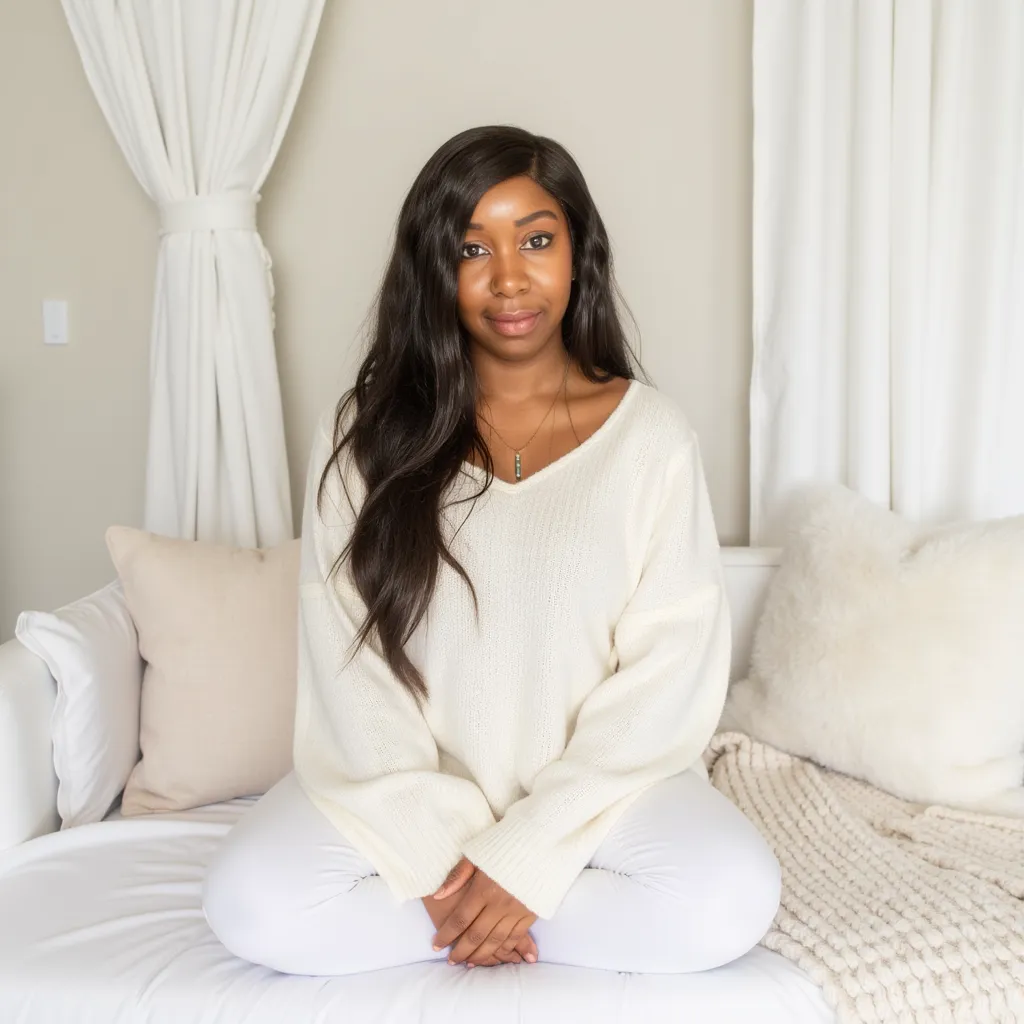
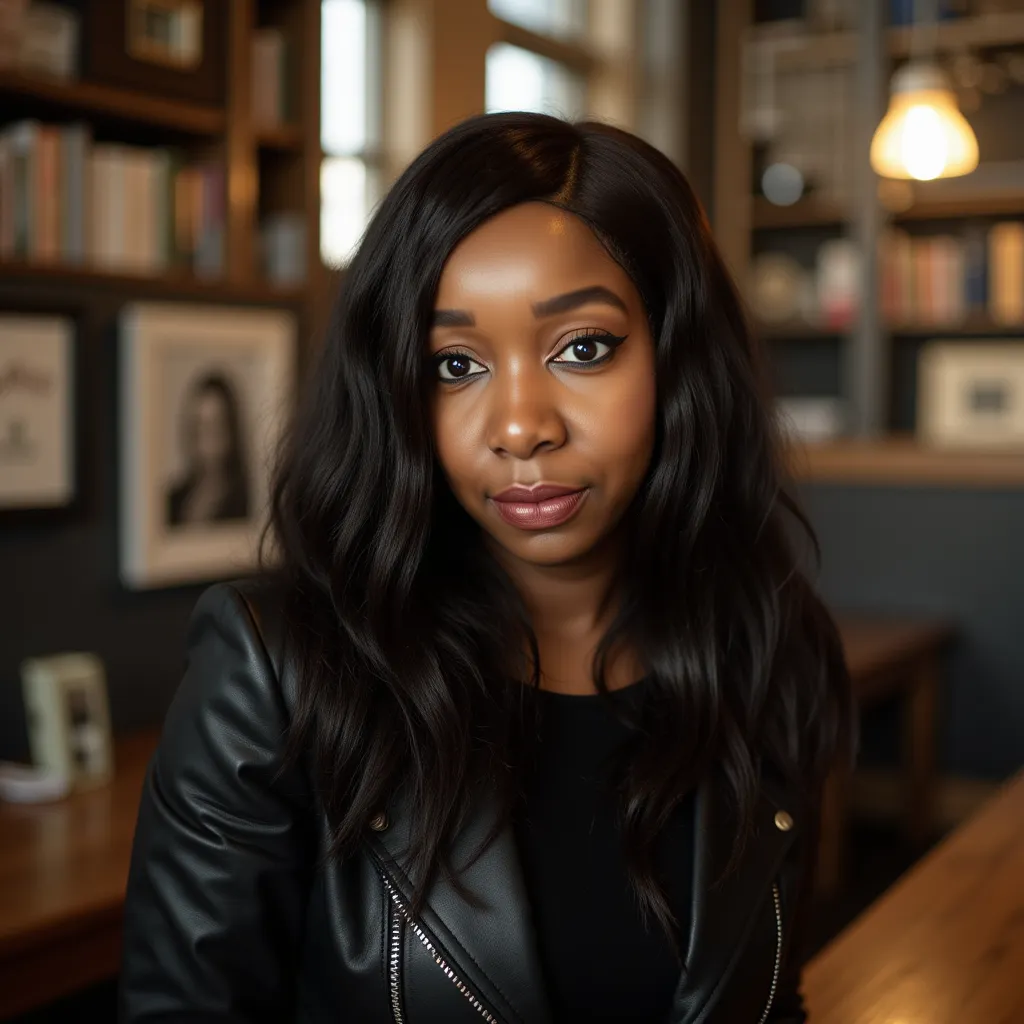
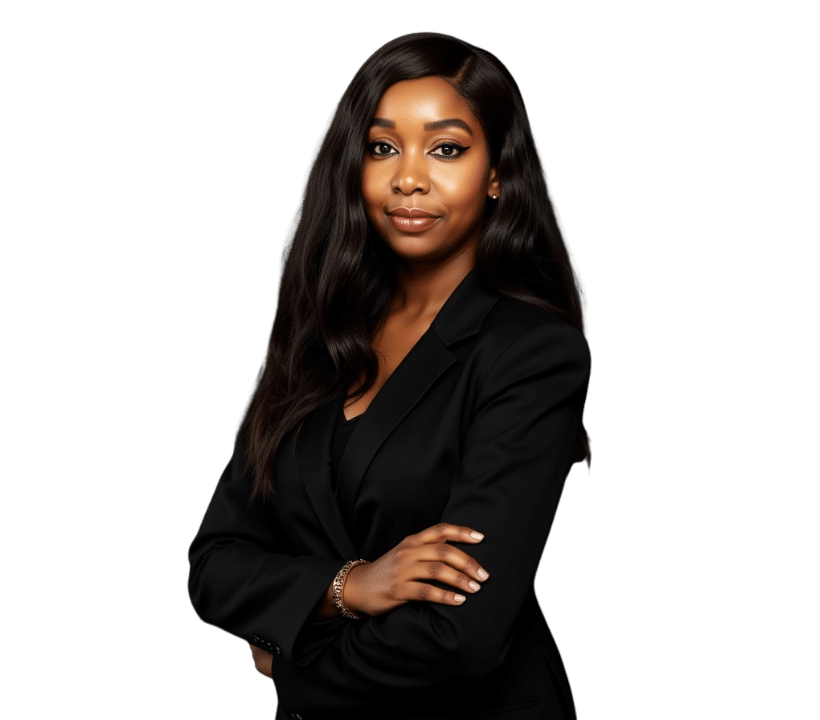

Ever wished you could create stunning AI-crafted portraits of yourself without splurging on pricey tools? Picture this: in less time than it takes to make your morning coffee, you can have professional-looking images ready for your social media, website, or even marketing campaigns. Oh, and it costs mere pennies. Intrigued yet? Stick around because I’m about to walk you through the exact steps to make AI images of yourself using an easy-to-use platform called Replicate.
What’s AI Image Creation All About?
Let’s break it down real quick—AI image generation is pretty much digital magic, minus the wand. You upload a few images, and the system gets trained to understand your unique features—eyes, facial expressions, even your quirky eyebrow lift. Then, with some handy prompts, it creates brand-new images of you. Sounds like wizardry, right?
This tech is not just about vanity (though hey, we all deserve a fab profile photo). It’s cost-effective, versatile, and makes personal branding an effortless process. Whether you’re a business owner, a content creator, or just someone looking to jazz up their socials, AI has got your back.
Tools You’ll Need
Before diving in, let’s get our toolbox sorted. First, you’ll need Replicate, which is our magic factory for AI images. If you’ve never heard of Replicate, think of it as your no-frills platform for creating AI models.
And here’s the unsung hero of this process: Canva. Yep, trusty Canva will help you prepare those images. You’ll need about 10 high-quality photos of yourself, showcasing different poses and expressions.
Preparing Your Photos
Now, let’s talk about photos. The key to nailing this is quality. Got blurry, out-of-focus shots? Bin them. These won’t work. You want clear images where your face takes centre stage. Why? Because the AI works its magic best when it can clearly see your face.
How many photos? Ten, minimum. More is better, though, as it helps the system better understand your features. Think variety—you don’t want all 10 images showing you with the same ‘passport photo’ face. Mix it up with big smiles, serious looks, maybe even a cheeky pout.
Here’s a pro tip: Canva makes this part easy. Pop your photos onto separate pages, then export them as a zip file. Voilà—you’ve got your first step sorted.
Training the AI Model on Replicate
Once your images are loaded into a zip file, head to Replicate’s AI model training tool (you can find it here). This handy feature, called the Laura trainer, is where the real action happens.
Upload your zip file, add a keyword (this’ll be your secret sauce for creating prompts later), and start training the model. How long does this step take? On average, about 25 minutes, which is just enough time to grab a snack or maybe scroll through TikTok.
Quick heads-up: The stronger your computer or internet connection, the quicker this’ll go.
Generating Your AI Images
With training done, it’s time to create. This is where the magic kicks in. You’ll see an interface where you can input your prompts. Be as specific as you like—this helps fine-tune the results. Want to see yourself as a CEO in a power suit? Type it in. Curious about how you’d look in Renaissance art? Why not give it a go.
Next, choose how many images you want and their format. Press the button, wait 30 seconds, and boom—you’ve got brand-new AI versions of yourself. Some will turn out great, some might give you an extra forehead (trust me, it happens). Don’t fret; trial and error are part of the process.
Refinement and Fine-Tuning
Not happy with the results? That’s normal. You’ve got two options—either tweak your prompts or go back and retrain the model. Pro tip: the more descriptive your prompts, the better the results. Don’t just stop at “portrait of me.” Add details like “studio lighting” or “bold colours”.
Also, check the images that didn’t turn out well. Did the AI miss any key details? Perhaps upload sharper pictures or more diverse expressions if you go back to the training stage.
Practical Tips for Stellar Results
- Use High-Quality Photos: Blurry images are a one-way ticket to AI disaster. High-res is non-negotiable here.
- Experiment with Prompts: Have fun. You’d be amazed at how little adjustments can give wildly different outputs.
- Pack Some Patience: The training stage takes time. Use it as a breather. You’ve earned it.
- Create More Sets for Variety: One set of images is never enough—run the process a few times for more options.
The Cost Factor: Pennies, Not Pounds
Here comes the best part—this entire thing is ridiculously affordable. Forget hiring photographers or spending hours on Photoshop. Your pennies are put to work here, delivering images that could easily pass for professional shots.
And if you’re a business owner looking to scale up your branding efforts, you might find this article on effective business scaling useful.
Why Should You Try This?
Think about how much time you spend on social media or updating your LinkedIn profile. Imagine replacing that old profile pic with something fresh and engaging, made by artificial intelligence. Pretty neat, right?
And once you get the hang of it, you can even create multiple sets of images for different purposes—professional, casual, or downright creative.
Ready to Scale Up?
If AI and scaling growth sound like your jam, don’t stop here. Check out Scaling Simplified with AI, where I guide entrepreneurs on reclaiming their time and scaling their revenue.
In fact, the first 20 members get an exclusive AI Business Transformation Pack worth £497. This includes:
- 100 proven AI prompts for business growth.
- AI automation assessment toolkit.
- A 90-day AI implementation roadmap.
- Priority access to monthly calls.
More details? You can find them here.
Wrapping Up
Creating AI images of yourself isn’t just a cool tech trick—it’s a game-changer (and yes, I’ll use “game-changer” here because it fits). Whether it’s for business branding, personal projects, or simply trying something new, this is worth your time.
The process is simple, the results are stunning, and best of all—it won’t drain your wallet. So give it a go, experiment with prompts, and have fun seeing what AI can create for you.
Ready to make your first AI image? Let me know how it goes in the comments below. And don’t forget to join Scaling Simplified for even more AI breakthroughs you can implement today.